Apptrove utilizes a method known as silent push notifications to determine when a user uninstalls an app from their device, since this mechanism operates in the background and does not show a notification to the user; thus, it is possible to monitor the uninstall process without interfering with the user’s app experience.
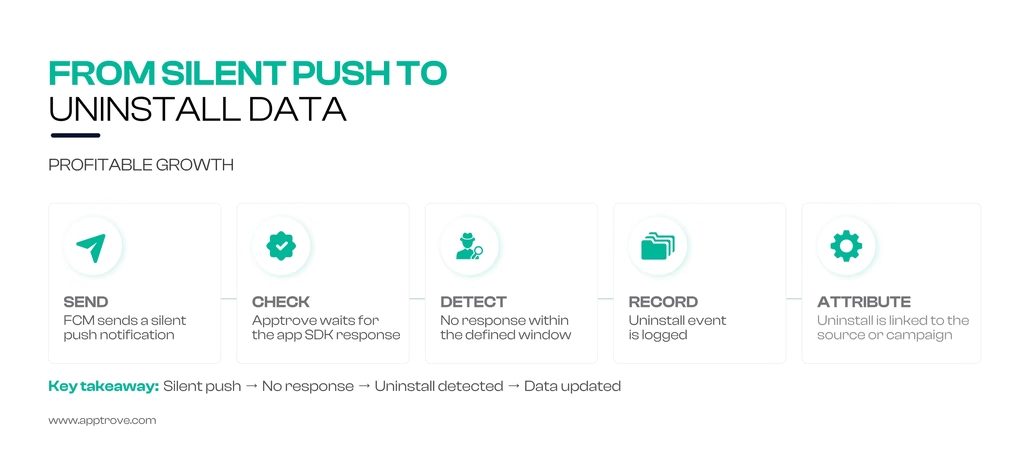
When sending silent push notifications, Apptrove expects the SDK of the app to acknowledge receipt of the notification. If the app fails to respond in the defined period, the platform determines that the user uninstalled the app. Subsequently, the uninstall is registered in Apptrove and assigned to a specific source or campaign.
How Silent Push Notifications-Based Uninstall Tracking Works
The process of uninstalling an app via silent push notifications can be explained in a few steps:
1. Apptrove sends a silent push notifications to the user’s device.
2. The app’s SDK receives the silent push notification.
3. If the app does not acknowledge the push, Apptrove assumes that it was uninstalled.
4. The event is recorded in the Apptrove dashboard.
5. The uninstall operation is attributed to the source or campaign.
Since the method works silently, tracking uninstallations does not disrupt the experience of the users.
Understanding the Working of FCM Uninstall Tracking
Apptrove employs Firebase Cloud Messaging (FCM) for uninstall tracking.
The method uses the delivery information provided by FCM to understand how pushes reach the application that has been installed. A silent notification is sent to the app while the system tracks the delivery. If the delivery fails, this means that the app is no longer available on the device.
Key Features of FCM Uninstall Tracking
Goal: Track uninstalls of applications as well as analyze the effectiveness of engagement and measure the performance of campaigns.
Method: Sending silent notifications to the application through FCM and monitoring the deliveries.
Detection: Availability of uninstall detection in real-time or almost in real-time.
Application: Helps teams to assess the rate of uninstallations and use the results for improvement of targeting and retention.
Requirements
Before the implementation of FCM uninstall tracking, users should check off the following requirements:
- A project in Firebase with the FCM service set up
- An application for Android with the Firebase SDK installed
- A functional Apptrove SDK
- A well-established infrastructure on the server for FCM tokens
Viewing Uninstall Data in Apptrove
Once uninstall tracking has been configured, uninstall information is available through Apptrove Reports and Cohort Analysis.
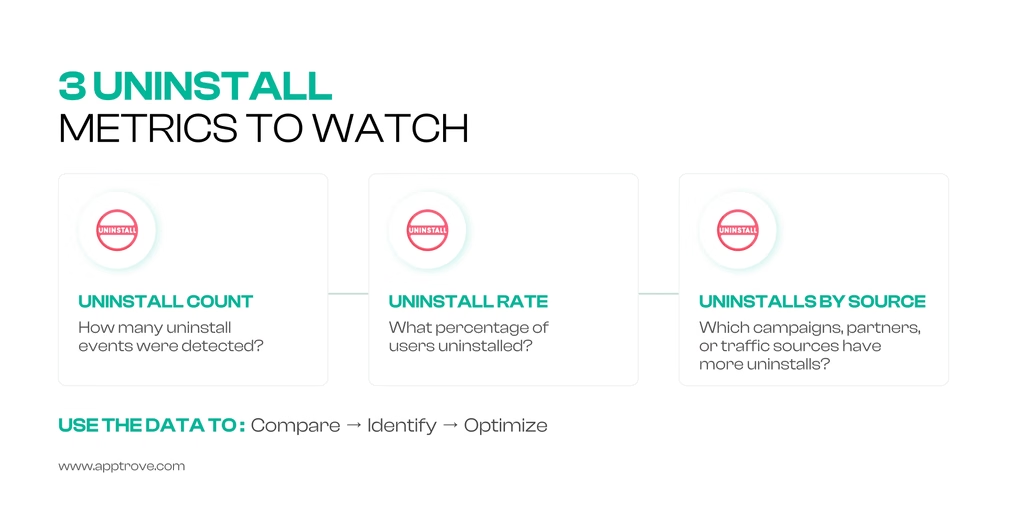
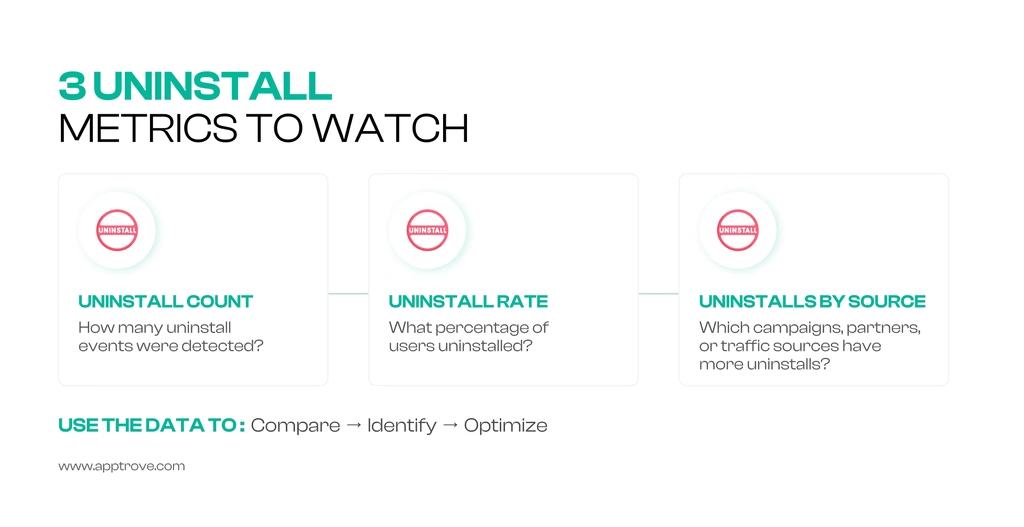
| Metric | Definition |
| Uninstall Count | The number of detected uninstall events. |
| Uninstall Rate | The percentage of users who uninstalled within the selected period. |
| Uninstalls by Source | Uninstalls grouped according to campaign, partner, or traffic source. |
These metrics allow teams to compare uninstall patterns across acquisition channels, creatives, and geographic locations.
Step-by-Step Setup
Here are the steps to set up uninstall tracking:
1. Use Apptrove SDK
Use the correct version of the Apptrove SDK that supports uninstall tracking to complete SDK integration.
2. Enable Silent Push Feature
Configure your application to be able to send silent push notifications, as it is mandatory for uninstall tracking.
3. Token Registration for Push Notifications
Register the required push notification tokens to make sure that the Apptrove backend can receive the tokens properly.
4. Enable Uninstall Tracking
Make sure the uninstall tracking feature has been enabled in the Apptrove Dashboard.
5. Check the Setup
Install the application on the test device, uninstall the application and make sure the uninstall event was reported in Apptrove reports.
Good Practices to Ensure Proper Uninstall Tracking
Setting up the silent push feature correctly ensures that you can get accurate uninstall tracking data.
Follow these practices to configure uninstall tracking properly:
Do Not Overuse Silent Push Notifications
Try to use silent push notifications only when necessary, as it causes unnecessary background requests to be generated.
Analyze Uninstallation Statistics
Check uninstall statistics regularly to be aware of the retention metrics and make sure that the users you acquired are of good quality.
Combine Uninstall Data With Other Metrics
Uninstallation data is more valuable when analyzed with cohort data and revenue reports. This gives an overview of the relationship between acquisition, retention, and monetization.
Comparing Groups of Users
Analyze the uninstallation patterns of different users based on app versions, methods of acquisition, and countries, and spot their weaknesses where relevant.
Verifying Tracking after Upgrades
Set the uninstall tracking again after the upgrade of the SDK or the app so as to ensure that it remains operational.
Final Thoughts
Apptrove uses the function of silent push notifications to detect possible uninstallations. When the app reacts to the push signal, it is considered to be active. In case there is no answer to the notification within the specified timeframe, it can be assumed that the app was uninstalled.
When uninstall information is available after it has been detected, teams can make use of Reports and Cohort Analysis to understand uninstall trends, such as uninstall count and uninstall rate. By collaborating this data with acquisition, retention, and revenue statistics, teams will be able to assess why users are being lost.