Campaigns are easy to run. But determining what was effective can frustrate marketers who squint at their dashboards and make educated guesses based on overall traffic patterns. With this guide, you will see how you can connect LinkedIn ads to Apptrove to ensure that all clicks, impressions, and most importantly, installs appear accurately in your attribution reporting.
At the end of this process, you will have a clear tracking bridge between LinkedIn ads and Apptrove using UniLink, meaning no confusion or loss of data for your ad performance.
Why connect your LinkedIn to Apptrove?
When running a LinkedIn advertisement, your audience has left LinkedIn, entered another channel (an app store, deep link, etc.), utilized a device, and continued along a user journey. If you are unable to attribute each step of this journey throughout all potential touch points on the user journey, you face many questions regarding:
– Which campaigns are producing installs?
– What Ads and creatives are working?
– Did I get value back on my spend?
Apptrove and their use of UniLink for user tracking, it provides you with the ability to create a smart tracking URL (as opposed to sending users directly to a store URL) that tracks each step of the user journey before redirecting a user to the proper destination.
This means LinkedIn advertisements will have measurable performance in Apptrove.
What This Integration Actually Tracks
Define what is and isn’t tracked when you begin using Apptrove:
LinkedIn Ads’ Setup → Agree to your Apptrove Account & Setup → Apptrove: Tracks(Clicks; Impressions; Installs);
Does Not Track → In-app events via organic traffic; Behaviour post-install back to LinkedIn
LinkedIn wants to go deeper with tracking data, but at the moment, the integration is only set up to track installs.
Step 1 – Create Your UniLink in Your Apptrove Account
The UniLink is integral to tracking on the Apptrove and LinkedIn ad platforms. The UniLink will be your tracking bridge.
1. Sign in to your Apptrove Dashboard
2. Click on UniLink Management
3. Create a New Template for your campaign
4. Configure your tracking installs as you would for the other tracking links.
5. Save the link. For more details, refer to the article: UniLink Management and Experience.
Now this UniLink will carry all attribution parameters from LinkedIn Ads to Apptrove.
Think of the UniLink as a translator, where LinkedIn speaks Clicks, and Apptrove speaks Attribution – the UniLink makes them both understand each other.
Step 2 — Add the UniLink to Your LinkedIn Campaign
You are about to transition to the LinkedIn platform.
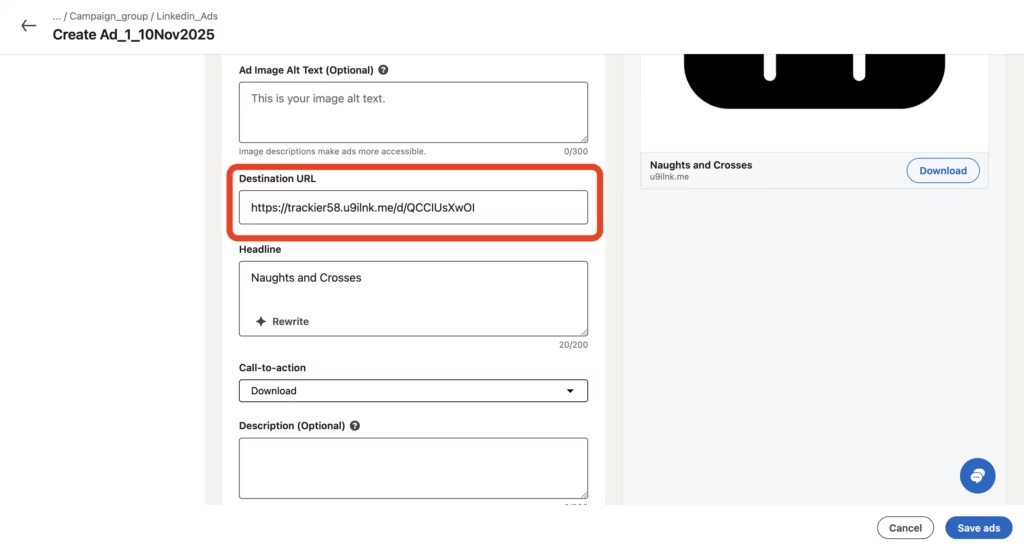
1. Log in to the LinkedIn Campaign Manager.
2. Create a new campaign or edit an existing one.
3. Copy your UniLink into the Destination URL field (this is your app’s URL link).
4. Choose a Call to Action (i.e., Download or Install).
5. Complete your campaign setup and publish your campaign.
Once you have completed your campaign, all traffic from the LinkedIn advertising platform will pass through Apptrove before reaching the app store. Apptrove will handle tracking the users coming from LinkedIn campaigns.
Important: “Product URL” Error To Ignore
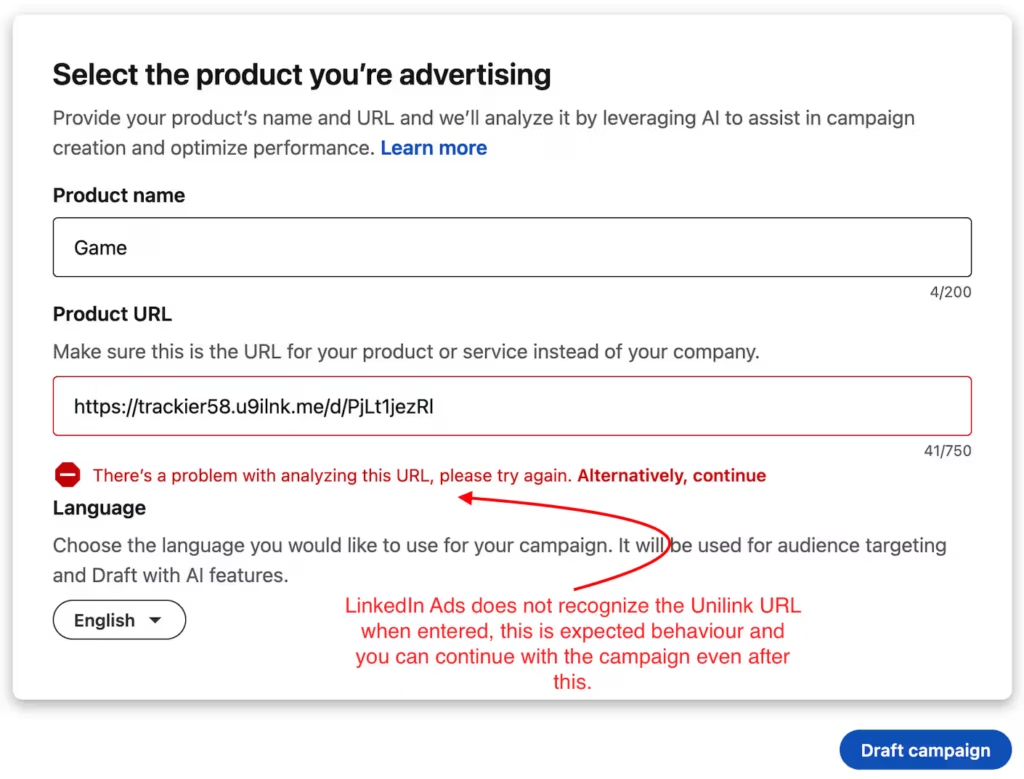
There is often confusion among marketers with this process. When adding a UniLink into LinkedIn there may be an error message appearing in the Product URL area because LinkedIn is expecting a store link instead of a tracking link.
You can disregard that message. The LinkedIn ads will function like intended and the tracking will function properly. The warning does not affect campaign performance or attribution.
This is an expected outcome when third-party tracking links are used.
Step 3 — Verify Tracking Inside Apptrove
Once you’ve launched your campaign, don’t just sit back and cross your fingers that it will work out — verify that it is working.
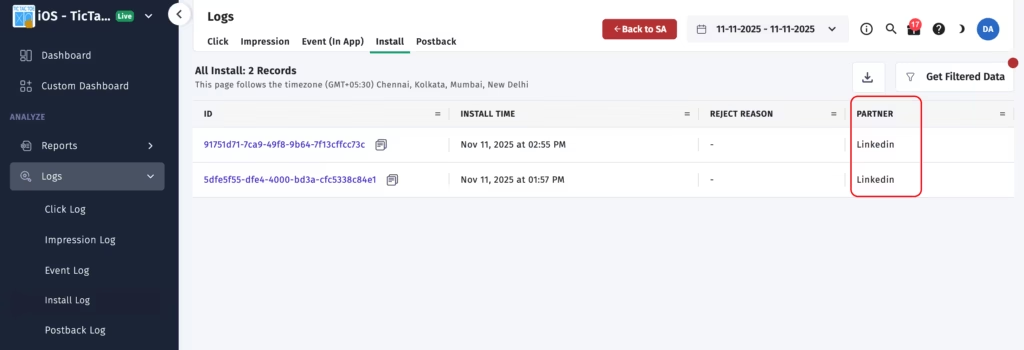
- Log in to your Apptrove dashboard.
- Click on the “Attribution Reports” link in the sidebar.
- Now use the filter to show data from the Partner called “LinkedIn.”
- Look for some clicks, impressions, and installs coming in.
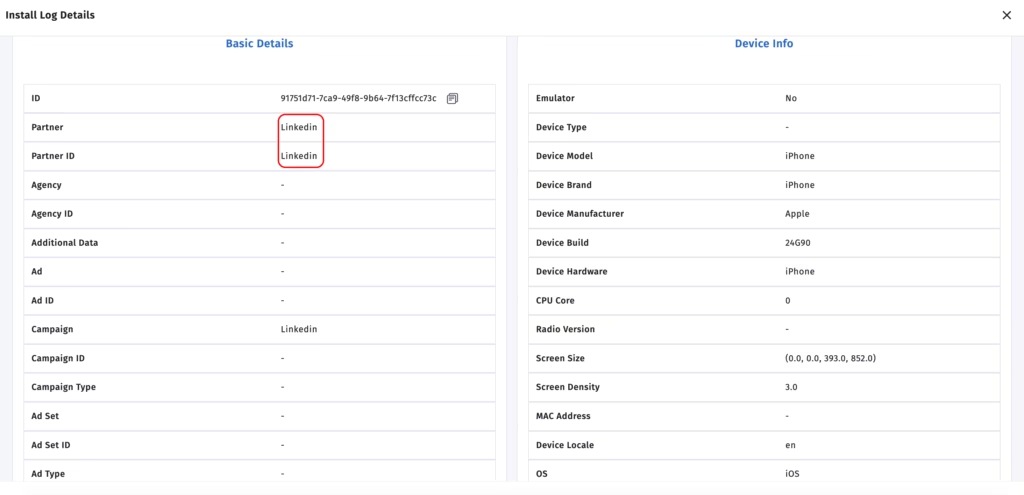
If your campaign and Apptrove have been set up correctly, you should see this data in real-time, moving from your LinkedIn Ads into Apptrove.
By verifying this data, you can be assured that the UniLink is functioning as intended.
Why is LinkedIn Missing From The Partner List
You may notice something strange. LinkedIn does not appear in the Partner list inside your Apptrove partner directory.
This is expected.
Even though LinkedIn is not on the list, data from LinkedIn Ad campaigns will still be sent, via the UniLink parameters, to Apptrove in the same way any other ads are tracked by the system. The UniLink parameters are how Apptrove recognizes the URL source; they do not rely on a partner toggle to know which ads are being tracked or reported. Therefore, please do not search for a way to integrate with LinkedIn. The UniLink is the integration.
What Happens After the Install
App installs from LinkedIn Ads are recorded as a LinkedIn install source. Apptrove attributes campaign install through the unique link (uniLink). Performance on different channels can be compared through one dashboard. Currently, there’s no way to see the in-app events users trigger after clicking on Ad, which currently only provides install-based attribution for Ad campaigns on LinkedIn. Therefore, this integration allows answering the most pressing performance-related question surrounding LinkedIn ads: Are we driving installs through LinkedIn ads?
To avoid common pitfalls with using this integration, be aware of the following:
1. Set it up and forget About It!
This integration will work automatically for your advertising on LinkedIn; however, errors can happen and make sure to routinely check your dashboard.
2. Copies the Correct Link Correctly –
Apptrove cannot track installs through direct App Store or Play Store links. All installs must take place through a uniLink.
3. Don’t Forget About Your Dashboard –
Make sure to check your dashboard after setting up your LinkedIn advertisement to confirm the flow of data is happening as expected, as opposed to waiting several days to finally see data flow.
4. Do Not Change Your Unique Link Mid-Campaign –
If you make a campaign change to the uniLink, all installs will break attribution.
5. Do Not Look for Event Data –
The integration only provides you with installation data from your LinkedIn advertisement. Don’t expect to see event-based metrics on any of your installs through LinkedIn.
How This Helps You Optimize Campaigns
Once tracking functions properly, you may:
- Make comparisons of the performance of LinkedIn ads to other advertising channels
- Know which campaign resulted in actual installs
- Avoid wasting money on poorly performing ads
- Expand the number of campaigns producing conversions
Without this infrastructure, clicks on your LinkedIn ads will simply be traffic. When you incorporate UniLink from Apptrove into your ad campaigns, you can begin to measure the growth of your business.
A Quick Checklist to Verify That Everything is Set Up Before Going Live
- You have created a UniLink in Apptrove.
- You have copied the UniLink into the Destination URL of your LinkedIn ad.
- You did not accept the warning of using the Product URL.
- You have published the campaign.
- You have the Partner Filter box checked inside of Apptrove.
- If you met all five requirements, your LinkedIn tracking is functioning and ready for use.
Things to Remember
There is nothing magical about attribution. It’s just wiring. Once you have connected your wires between your LinkedIn ads and Apptrove with your UniLink, you will have created a circuit.
There is no guessing. There is no blind traffic. There is no need to wonder where your installs are coming from.
There is only clean data, clear insight, and a campaign you can finally optimise with confidence.

We are delighted to have assembled a world-class team of experienced professionals who are ready to take care of your queries and answer any questions you may have. Feel free to reach out to us at any time by emailing us at support@apptrove.com or by using the in-platform chat feature. We’d love to hear from you!